


If your Android phone’s battery is draining quickly, you’re not alone. Many Android users experience rapid battery drain due to apps, settings, charging habits, or hardware issues. The good news? Most of these problems can be fixed with a few smart adjustments.
In this guide, we’ll cover the main reasons for Android battery drain and share practical tips to improve battery life and lifespan.
Common Causes of Android Battery Drain
1. Too Many Apps Running in the Background
Apps consume power even when you’re not actively using them. Social media apps, games, navigation apps, and messaging services often run background processes that drain the battery. Avoid frequently opening and closing apps that you use regularly, such as Notepad, Google, YouTube, ChatGPT, etc. This puts more load on the processor and consumes more battery.

Fix:
Close unused apps
Limit background activity from Settings > Battery > App Usage
Avoid frequently opening and closing apps
2. Screen Brightness Set Too High
The display is one of the biggest battery consumers. Keeping the brightness at maximum all the time can significantly reduce battery life. Always keep the brightness as low as needed, and while you can set it to full outdoors, avoid doing so for extended periods.

Fix:
Enable adaptive/auto brightness
Manually reduce brightness indoors
3. Phone Overheating
Heat is the biggest enemy of battery health. Gaming, video streaming, multitasking, and hot environments can cause your device to overheat. Avoid using your phone while charging, as this significantly increases the heating level and severely impacts the battery. Fixes:
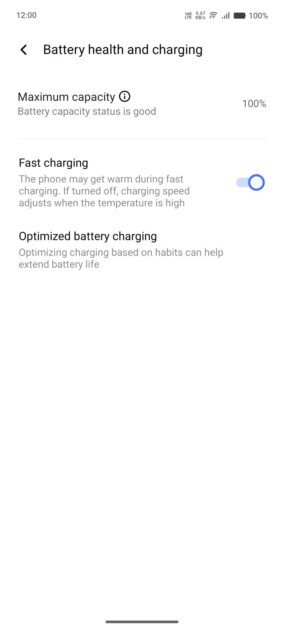
Avoid excessive use during charging
Remove your phone case while charging
Do not leave your phone in direct sunlight
4. Using non-original chargers or cables
Cheap or incompatible chargers can cause incorrect voltage, overheating, and premature battery degradation. Always use the original adapter and cable; avoid third-party charging. If you do use a third-party charger, use a certified one. Also, avoid excessively slow charging; always prefer the original charger.
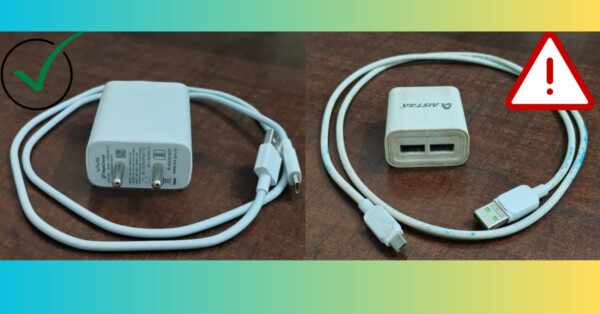
Fixes:
Use the original charger or a certified third-party charger
Avoid unknown fast chargers/slow chargers
5. Poor network signal (mobile data/Wi-Fi)
When your phone struggles to find a signal, it uses more power to stay connected.
Fixes:
Turn on Airplane Mode in areas with no signal
Turn off Wi-Fi, Bluetooth, and GPS when not needed
Best ways to reduce Android battery drain
Options may vary depending on the Android version and device brand.
Turn on Battery Saver or Extreme Battery Saver
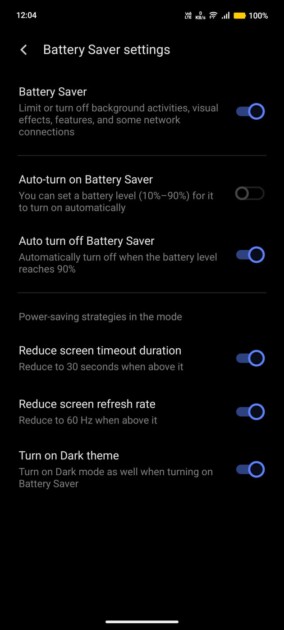
Battery Saver reduces background activity and limits power-hungry features.
When enabled, it can:
Stop background apps
Limit location services
Reduce performance
Delay notifications
Turn on Dark Theme
Path: Settings > Battery > Battery Saver
Use Dark Mode
Dark Mode helps save battery, especially on OLED displays. How to enable:
Open Settings
Tap Display
Turn on Dark Theme
Limit internet and location access
Turn off Bluetooth, GPS, and mobile data when not in use
Avoid keeping camera and gaming apps open in the background
Troubleshooting Android Battery Issues
If battery drain persists after optimizing settings, try these solutions:
Restart your phone
A simple restart can fix background glitches.
Update your Android system
Software updates often include improvements to battery performance.
Steps:
Open Settings
Tap System > Software update
Install any available updates
Update your apps
Outdated apps can consume more battery. Enable auto-updates if possible. Or manually check through Play Store notifications.

Steps:
Open Google Play Store
Tap the profile icon
Go to Manage apps and devices
Update all apps
Smartphone Battery Charging Tips (Very Important)
Follow the 20–90% rule
Avoid regularly charging to 100%
Don’t let the battery drop below 20% too often
Avoid using your phone while charging
Playing games or watching videos while charging generates heat + parasitic load, which reduces battery life. Avoid fast charging all the time
Fast charging is useful, but frequent use puts stress on the battery. Use normal charging whenever possible.
Charge in short cycles
Short, frequent charges are better than long charging sessions.
How to Improve Smartphone Battery Life
Check for malware
Malicious apps silently drain the battery. Use a reputable antivirus app to scan your phone.
Reduce screen timeout
Shorter screen timeout = less battery usage.
Remove battery-draining apps
Go to Settings > Battery > Usage and uninstall or restrict apps that are using too much power.
What to do if Android battery problems persist?
If none of these methods work:
Consider replacing the battery
Back up your data and try a factory reset
Contact your device manufacturer or a service center
Battery degradation is natural over time. If your phone is old, upgrading to a newer model with a larger battery might be the best option.
Final thoughts
Understanding the causes of Android battery drain and adopting good usage habits can significantly improve both daily battery life and overall battery longevity. Small changes to settings, charging habits, and app usage can save you from needing a battery replacement sooner and improve your phone’s performance.